Locked out? You can reset your password yourself in under a minute — no support ticket needed.
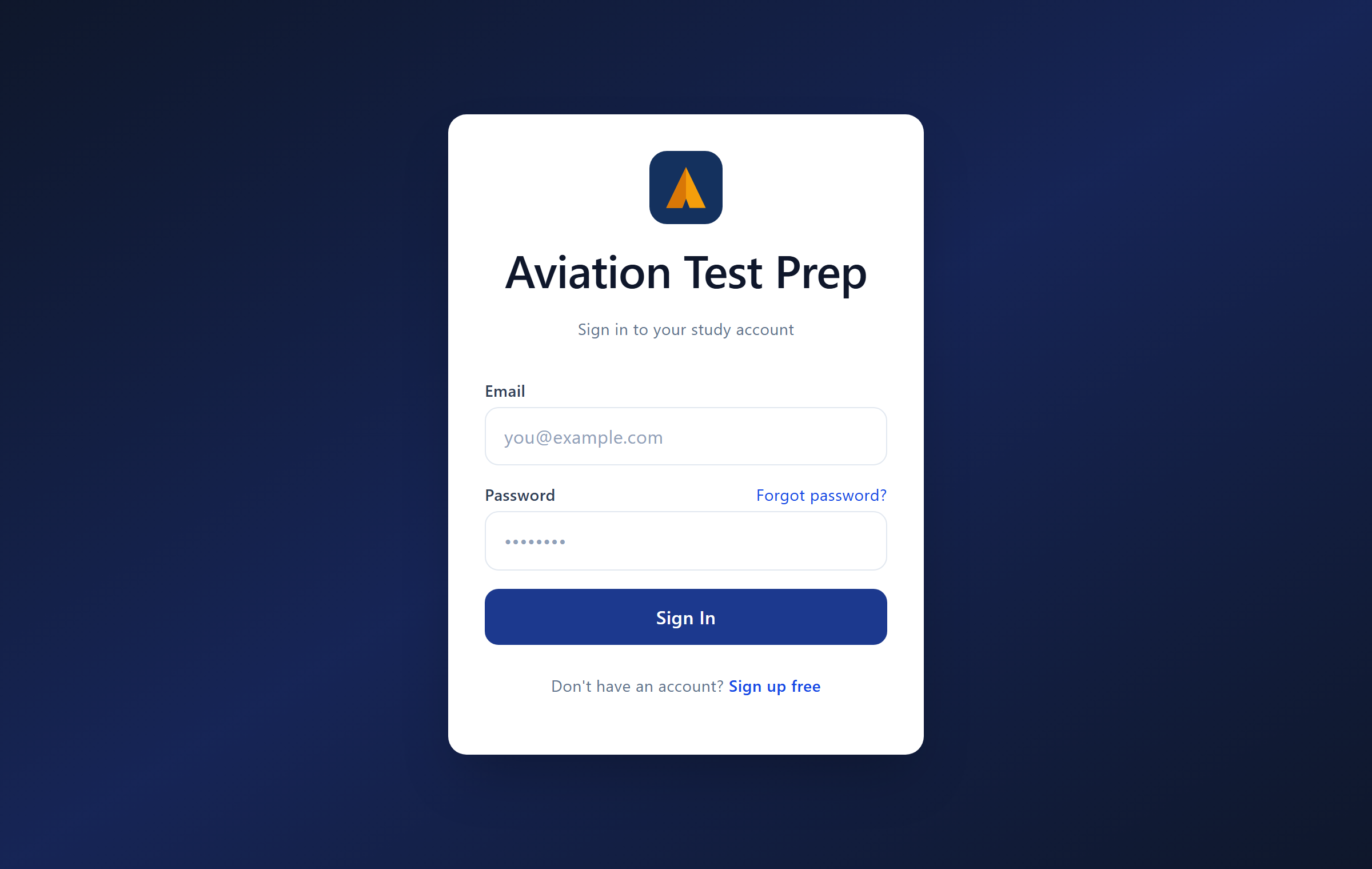
1. Tap “Forgot password?” on the login screen
On the sign-in page, the Forgot password? link sits right next to the Password field.
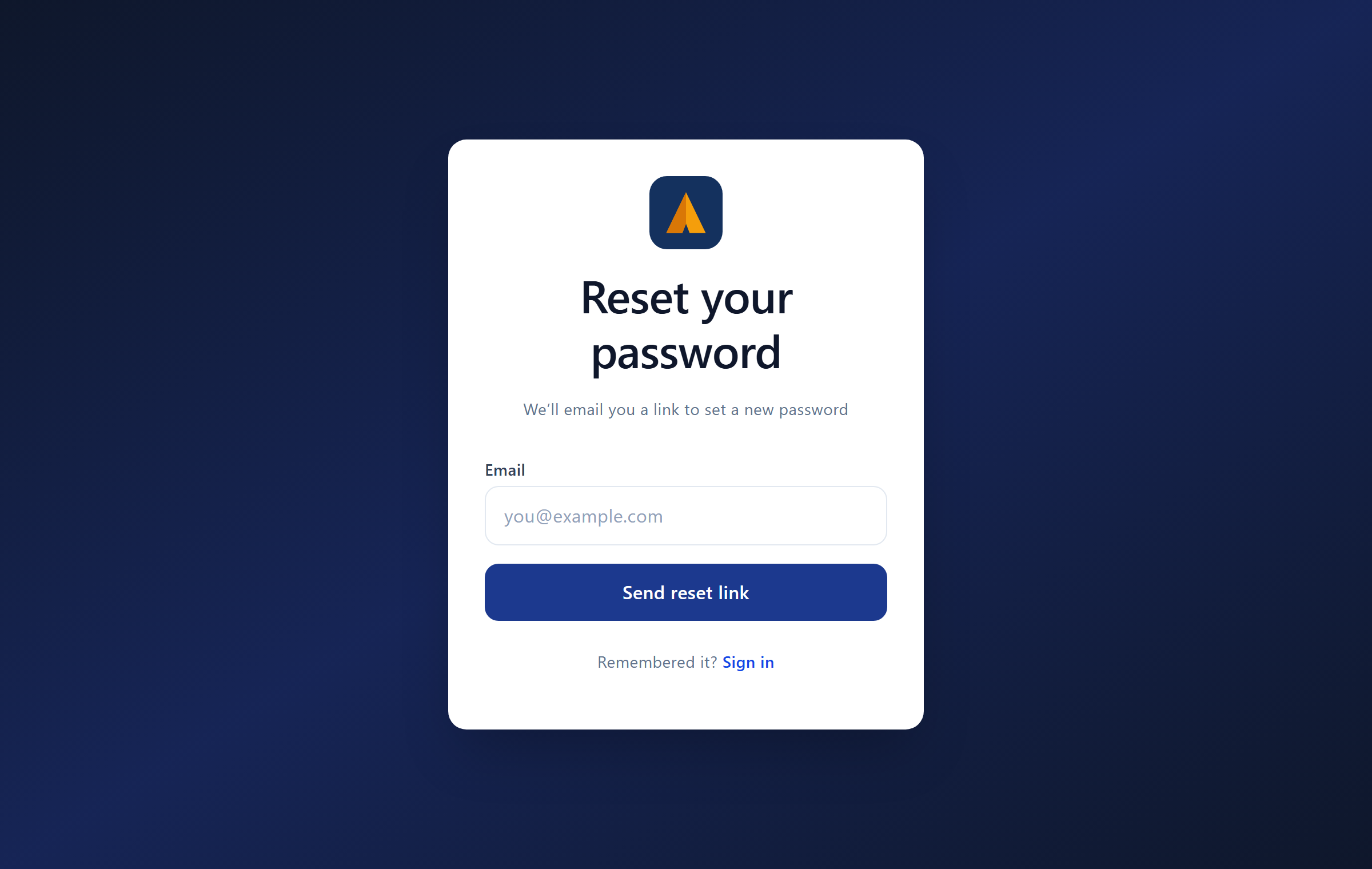
2. Enter your email and send the link
Type the email address on your account and tap Send reset link.
3. Check your email and click the link
Yes — we email you a secure reset link, and you click that link to continue. It usually arrives within a minute or two. If you don't see it, check your spam/junk folder and add support@aviationtestprep.com to your contacts. The link expires in about an hour for security — if it lapses, just request a new one.
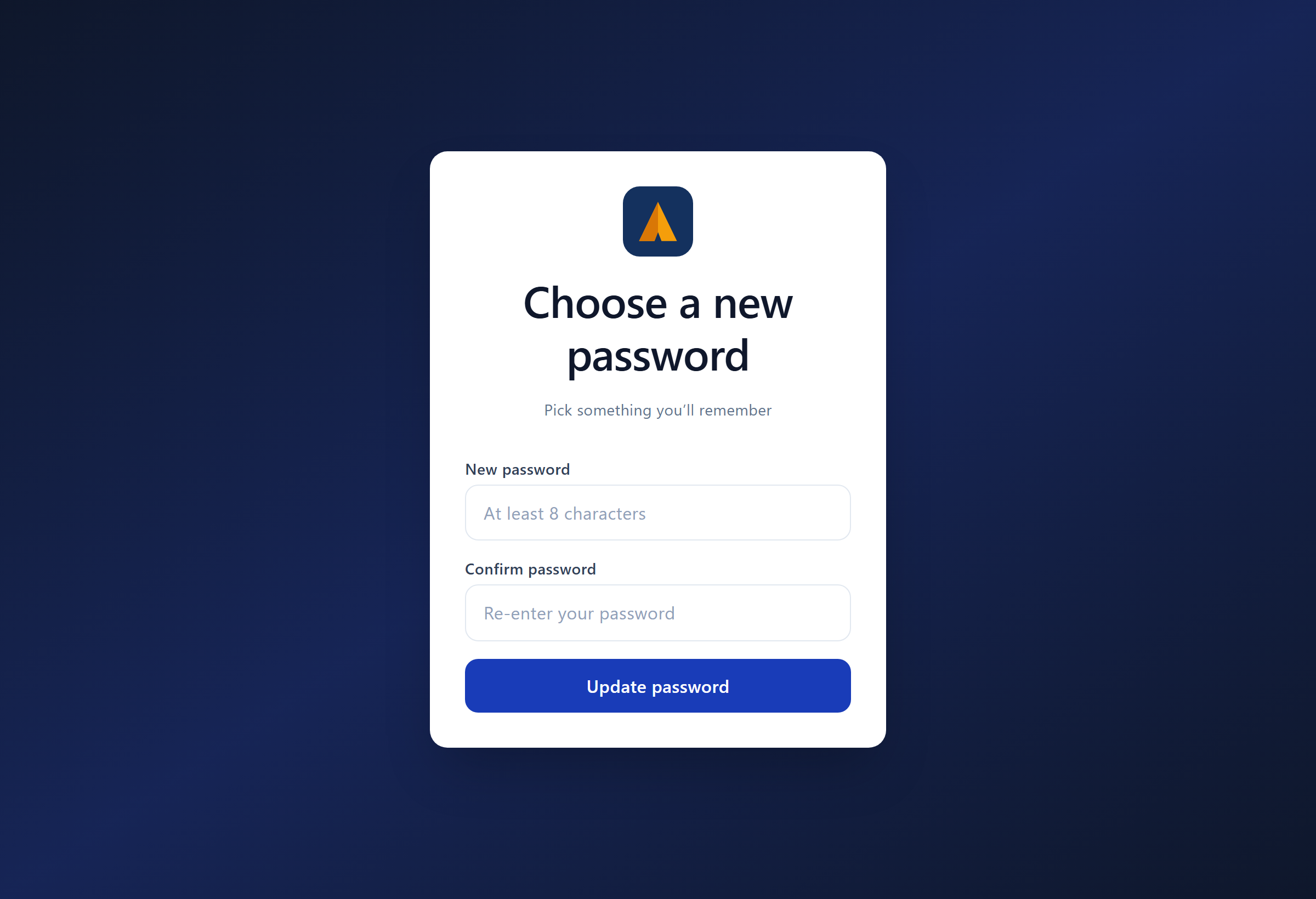
4. Choose a new password
Clicking the link opens the “Choose a new password” page. Enter a new password (at least 8 characters), confirm it, and tap Update password — you'll be signed straight in.
Already signed in and just want to change it? You can update your password anytime from your Account settings.